
On iPhone or iPad
After selecting a video, use Safari’s download control or Share menu. Look in Files → Downloads if the file does not appear in Photos. Open the MP4 before moving it to another app.
Download TikTok videos in HD. Paste a public link, compare the HD and standard MP4 files, and save the one you want. A watermark-free file is shown when the source provides it.
To download a public TikTok video with TikSaveIO, copy its share link, paste it above, choose an MP4 file shown for that video, and save it through your browser. HD and watermark-free versions appear as separate choices when the source provides them.
Open a public TikTok video and copy its share link.
Paste it into the field above and press Download to see the media offered for that public link.

Select HD for the available higher-quality source, or standard MP4. Do not assume an HD label also means watermark-free.
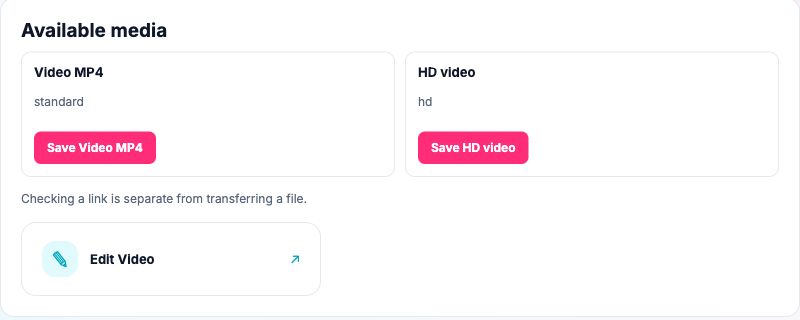
Use the result’s Save button, then confirm the MP4 appears in your browser downloads and opens on your device.
After selecting a video, use Safari’s download control or Share menu. Look in Files → Downloads if the file does not appear in Photos. Open the MP4 before moving it to another app.
Use the browser’s download prompt, then check Downloads or the Files app. If the file plays in a tab, use the browser menu to save it.
Choose the available MP4 option and check the browser downloads list. The filename and save location depend on your browser settings.
TikSaveIO downloads the HD source file when the result offers it. HD is a quality choice; standard MP4 is another file option. Resolution depends on the source video.
A watermark-free result means the source supplied a file without its watermark. TikSaveIO does not remove watermarks, and an HD label alone does not establish watermark status.
Find steps for expired links, HD choices and files that did not finish saving.
Paste a public video link, choose the HD video in the result and save it. Check the completed MP4 in your browser Downloads list.
No. HD describes a video quality option; watermark status is separate. Check the result for the file you select.
No. Use a public link for content you have permission to save.
Check your browser’s Downloads list first. On iPhone, also check Files → Downloads; on Android, check Downloads or Files.
Yes. Save the MP4 first, then choose Edit Video and select the file on your device. The file is not sent automatically.
HD is the available higher-quality video source, while standard MP4 is a separate video choice. A watermark-free file depends on the source. Review the actual result before saving; one label does not imply the others.
On iPhone, open Safari Downloads, then Files → Downloads. On Android, open the browser downloads list or Files → Downloads. Playing a preview is not the same as saving a file.