
On iPhone or iPad
After selecting a video, use Safari’s download control or Share menu. Look in Files → Downloads if the file does not appear in Photos. Open the MP4 before moving it to another app.
Download public TikTok videos online in MP4. Paste a link and choose the standard, HD or watermark-free file shown for that video—no extra software needed.
To download a public TikTok video with TikSaveIO, copy its share link, paste it above, choose an MP4 file shown for that video, and save it through your browser. HD and watermark-free versions appear as separate choices when the source provides them.
Open the TikTok video and copy its share link.
Paste it into the field above and press Download to see the media offered for that public link.

Check standard MP4, HD, and watermark status in the result.
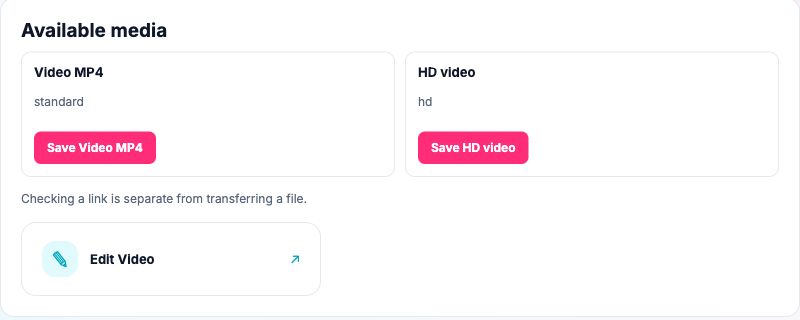
Select standard MP4, HD, or a watermark-free source file only if that option appears in the result.
Start the browser download, then check the file on your device before editing or sharing.
After selecting a video, use Safari’s download control or Share menu. Look in Files → Downloads if the file does not appear in Photos. Open the MP4 before moving it to another app.
Use the browser’s download prompt, then check Downloads or the Files app. If the file plays in a tab, use the browser menu to save it.
Choose the available MP4 option and check the browser downloads list. The filename and save location depend on your browser settings.
TikSaveIO does not erase watermarks. It can offer an existing version without one when the source supplies it.
HD describes a source file. The tool does not upscale video or promise a specific resolution.
Only a source-provided file can be listed. Try the standard MP4 if that is the only available version.
The result may offer only one quality. HD is never manufactured from a smaller file.
A successful link check does not prove file transfer. Check browser downloads, then recheck the public link if its temporary option has expired.
No. Some posts offer only a watermarked file.
No. The tool is for authorized public content.
Check your browser’s Downloads list first. On iPhone, also check Files → Downloads; on Android, check Downloads or Files.
Yes. Save the MP4 first, then choose Edit Video and select the file on your device. The file is not sent automatically.